

本文记录了使用 Hugo 框架在 Windows 环境下搭建个人博客,并部署至 GitHub Pages 的完整过程。
一、环境准备
需要安装 Git(版本控制)和 Hugo Extended(静态网站生成器)。
安装 Git 去 Git 官网 下载安装包,双击运行。
安装 Hugo Extended 去 Hugo Releases 下载文件名包含
extended的 ZIP 包(如hugo_extended_0.167.0_windows-amd64.zip),解压到任意目录(如D:\Hugo)。 在环境变量的“系统变量”中找到Path,新建一行填入你的目录。验证安装 重新打开 PowerShell,输入以下命令检查是否安装成功:
POWERSHELLgit --version hugo versiongit --version hugo version

二、创建项目与安装主题
打开 PowerShell,进入你存放代码的目录:
# 创建站点目录(将其中的 [你的博客文件夹名] 替换为你喜欢的名字,如 my-blog)
hugo new site [你的博客文件夹名]

# 进入站点目录
cd [你的博客文件夹名]

# 初始化 Git 仓库
git init可以在 Hugo 官网选择自己喜欢的主题并安装(以 PaperMod 为例,这是一款功能丰富、UI 现代的主题):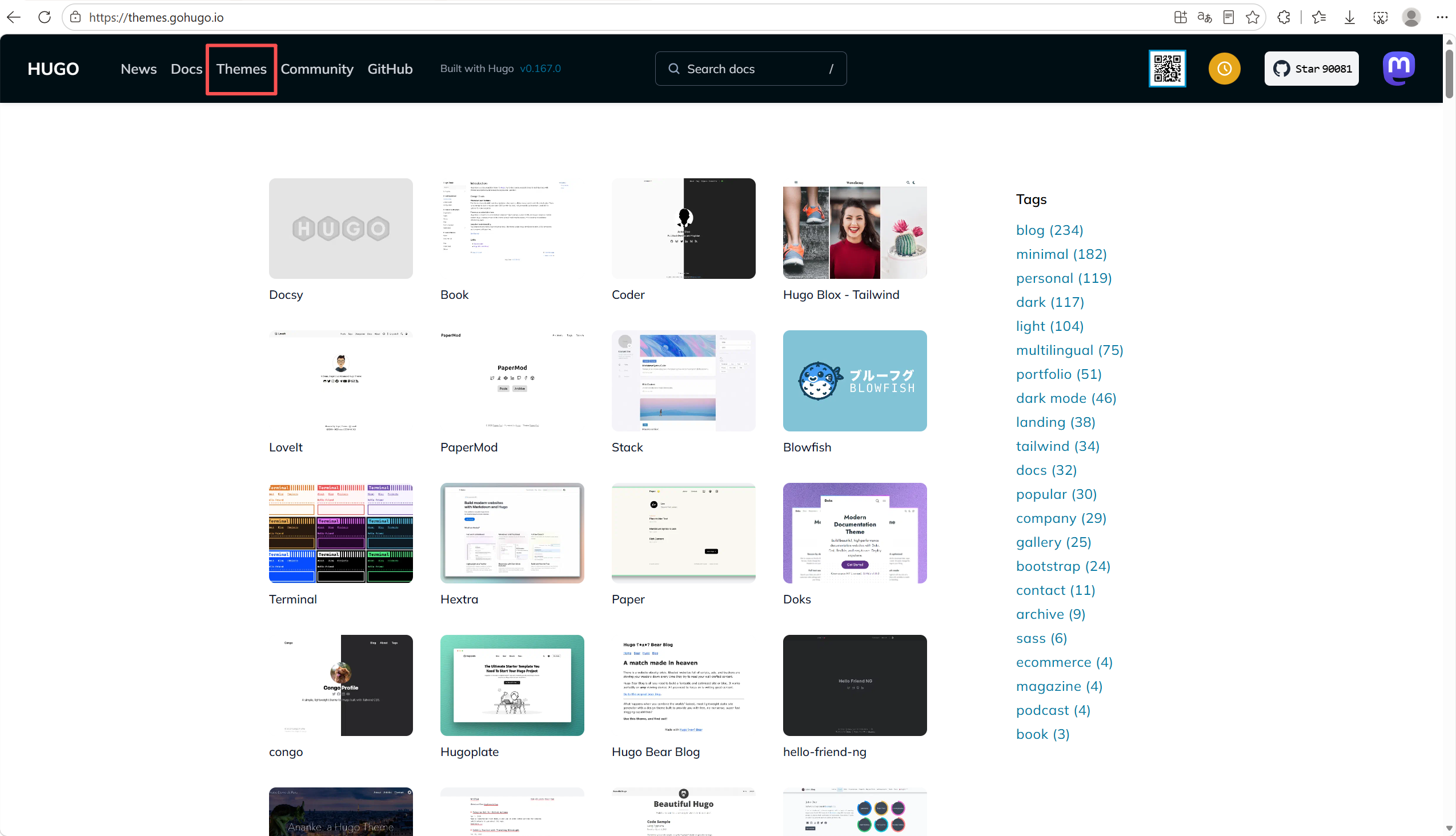
git submodule add https://github.com/adityatelange/hugo-PaperMod.git themes/PaperMod安装完成后,用编辑器打开根目录下的 hugo.toml 文件,修改为以下基础配置:
baseURL = "https://[你的GitHub用户名].github.io/[你的仓库名]/"
languageCode = "zh-cn"
title = "[你的博客标题]"
theme = "PaperMod"注意:baseURL 末尾必须带有斜杠 /,否则线上部署时会导致样式丢失。
三、写作与本地预览
# 创建第一篇文章
hugo new posts/my-first-post.md打开 content/posts/my-first-post.md 文件,将文件头部的 draft: true 修改为 draft: false(草稿状态无法在正式构建中发布)。
启动本地开发服务器进行预览:
hugo server -D打开浏览器访问 http://localhost:1313/,当你修改文章或配置时,页面会自动刷新。按 Ctrl+C 可停止本地服务。
四、部署到 GitHub Pages
创建 GitHub 仓库 登录 GitHub,新建一个仓库,名称推荐用英文(如
my-blog),不要勾选初始化 README 等选项。记下仓库地址:https://github.com/[你的GitHub用户名]/[你的仓库名].git。关联远程仓库并推送 在项目根目录的 PowerShell 中执行:
POWERSHELLgit remote add origin https://github.com/[你的GitHub用户名]/[你的仓库名].git git branch -M main git add . git commit -m "Initial commit" # 文档更新的提示信息 git push origin maingit remote add origin https://github.com/[你的GitHub用户名]/[你的仓库名].git git branch -M main git add . git commit -m "Initial commit" # 文档更新的提示信息 git push origin main如果报错提示
Author identity unknown,请运行git config --global user.email "你的邮箱"和git config --global user.name "你的用户名"后重新提交。配置 GitHub Actions 自动部署 在项目根目录创建
.github/workflows/hugo.yaml文件,填入以下内容:YAMLname: Deploy Hugo site to Pages on: push: branches: ["main"] workflow_dispatch: permissions: contents: read pages: write id-token: write jobs: build: runs-on: ubuntu-latest env: HUGO_VERSION: 0.167.0 # 必须大于等于主题要求的最低版本,且与你本地一致 steps: - name: Checkout uses: actions/checkout@v4 with: submodules: recursive fetch-depth: 0 - name: Setup Pages id: pages uses: actions/configure-pages@v4 - name: Install Hugo run: | wget -O ${{ runner.temp }}/hugo.deb https://github.com/gohugoio/hugo/releases/download/v${HUGO_VERSION}/hugo_extended_${HUGO_VERSION}_linux-amd64.deb sudo dpkg -i ${{ runner.temp }}/hugo.deb - name: Build run: hugo --minify --baseURL "${{ steps.pages.outputs.base_url }}/" - name: Upload artifact uses: actions/upload-pages-artifact@v3 with: path: ./public deploy: environment: name: github-pages url: ${{ steps.deployment.outputs.page_url }} runs-on: ubuntu-latest needs: build steps: - name: Deploy to GitHub Pages id: deployment uses: actions/deploy-pages@v4name: Deploy Hugo site to Pages on: push: branches: ["main"] workflow_dispatch: permissions: contents: read pages: write id-token: write jobs: build: runs-on: ubuntu-latest env: HUGO_VERSION: 0.167.0 # 必须大于等于主题要求的最低版本,且与你本地一致 steps: - name: Checkout uses: actions/checkout@v4 with: submodules: recursive fetch-depth: 0 - name: Setup Pages id: pages uses: actions/configure-pages@v4 - name: Install Hugo run: | wget -O ${{ runner.temp }}/hugo.deb https://github.com/gohugoio/hugo/releases/download/v${HUGO_VERSION}/hugo_extended_${HUGO_VERSION}_linux-amd64.deb sudo dpkg -i ${{ runner.temp }}/hugo.deb - name: Build run: hugo --minify --baseURL "${{ steps.pages.outputs.base_url }}/" - name: Upload artifact uses: actions/upload-pages-artifact@v3 with: path: ./public deploy: environment: name: github-pages url: ${{ steps.deployment.outputs.page_url }} runs-on: ubuntu-latest needs: build steps: - name: Deploy to GitHub Pages id: deployment uses: actions/deploy-pages@v4启用 Pages 将上述改动推送到 GitHub 后,进入仓库的 Settings -> Pages,将 Source 改为 GitHub Actions。每次推送到
main分支,Actions 都会自动构建并发布。网址为https://[你的GitHub用户名].github.io/[你的仓库名]/。
五、域名绑定与个性化设置
1. 绑定自定义域名
在域名服务商处添加 4 条 A 记录,主机记录填 @,记录值分别为 185.199.108.153、185.199.109.153、185.199.110.153、185.199.111.153。在 GitHub Pages 设置中填入你的自定义域名 [你的域名],并勾选 Enforce HTTPS。
2. 配置导航菜单
在 config/_default/ 目录下创建 menus.zh-hans.yaml,配置顶栏、底栏和社交链接:
# 请查看自己对应主题的建设文档
main:
  - name: 文章
    pageRef: /posts
    weight: 10
    params:
      icon: posts # icon为图标,需确认themes目录下有该文件
  - name: 分类
    pageRef: /categories
    weight: 20
    params:
      icon: tags
  - name: 友链
    pageRef: /friends
    weight: 30
    params:
      icon: related
  - name: 关于
    pageRef: /about
    weight: 40
    params:
icon: about创建对应的页面(以 about 和 friends 为例):
hugo new about/_index.md
hugo new friends/_index.md创建后将这两个文件内的 draft: true 改为 draft: false。
3. 配置头像与自定义 CSS
将头像图片(如 avatar.jpg)放入 static/images/ 目录,在 hugo.toml 中配置:
[params]
  logo = "/images/avatar.jpg"
  customCSS = ["css/custom.css"]

[params.author]
  name = "[你的昵称]"
avatar = "/images/avatar.jpg"六、常见问题与避坑指南
- 报错
Author identity unknown运行git config --global user.email "你的邮箱"和git config --global user.name "你的名字"配置身份即可。 - 报错
Failed to connect to github.com port 443这通常是因为网络限制。检查代理软件的 HTTP 端口(如 Clash 的 7890),在 PowerShell 中运行git config --global http.proxy http://127.0.0.1:7890和git config --global https.proxy http://127.0.0.1:7890。如果仍不行,可以直接在 GitHub 网页端手动编辑或上传文件。 - Actions 构建失败提示找不到主题
检查
.github/workflows/hugo.yaml的actions/checkout步骤是否包含submodules: recursive。 - 构建失败提示版本不兼容或找不到模板
检查工作流中的
HUGO_VERSION是否大于等于主题要求的最低版本。 git push前提示需要git pull按照提示执行git pull,若进入 Vim 编辑器界面,按Esc后输入:wq保存退出,解决冲突后再推送。
本文首发于 [Yinniao],转载请注明出处。
Comments